

Chat about a report, an agent or a site
Who can do this: everyone in the workspace. You need the report, agent or site.
A conversation can be about one report, agent or site, its subject. Chat then works on the subject, and the side panel shows it beside the conversation.
Steps
-
Open the report, agent or site and select Edit with AI. On a page of a site, Edit this page with AI starts on that page. On a failed run of a report or an agent, Fix with AI starts on that run.
-
A conversation opens with the subject in the side panel. It starts with a card that names the subject and what of it is live, such as Release 6 · live or Version 4 · active.
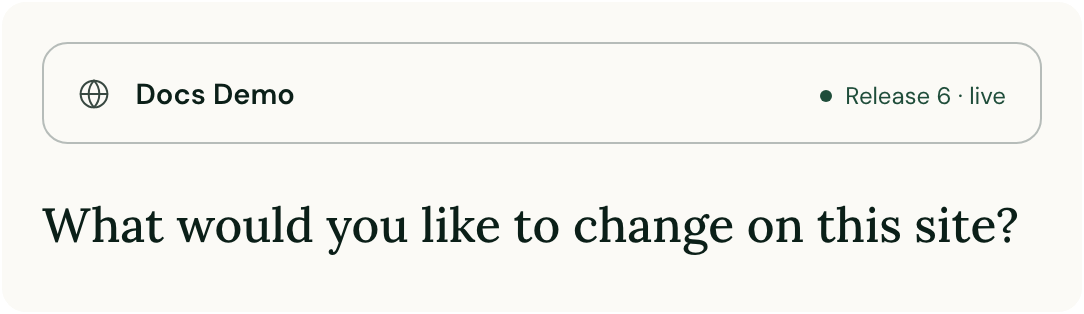
The card an empty conversation about a site starts with. -
Write what you want to change and send it. Nothing is sent for you before your first message.
-
Watch the side panel. Chat answers itself, or hands the work to the report builder, the Agent Creator or the site editor.
-
To give the conversation the whole width, close the side panel. The button next to the message box names the subject, such as Site: Docs Demo, and opens the panel again.
Good to know
- Edit with AI opens a new conversation each time. On an agent it opens the agent's own conversation, which may already have messages.
- On a failed run the card offers Fix it, and on an open draft of a site Continue. Each button sends its own words as your message.
- Under each of your messages, the conversation notes where in the subject the side panel was, such as v4 of a report or /about of a site.
- Opening another screen in the side panel does not change the subject.
- A conversation that never got a message is removed after about a day.
The rules behind this task are in the reference, under Subject and side panel.