

Decide an approval request in chat
Who can do this: everyone in the workspace decides a request for one change. A request that says Asks permission needs an admin.
Chat reads your connected systems without asking. Before it changes something in one, it shows an approval request in its reply and waits.
Steps
-
Ask chat for something that changes data in a connected system, for example to add a comment to a reservation in Apaleo.
-
Chat shows an approval request in its reply. Its first line says what the change does and in which connection, with the main values under it. What chat wrote about it follows under The assistant says. Details lists every value chat would send and the action.
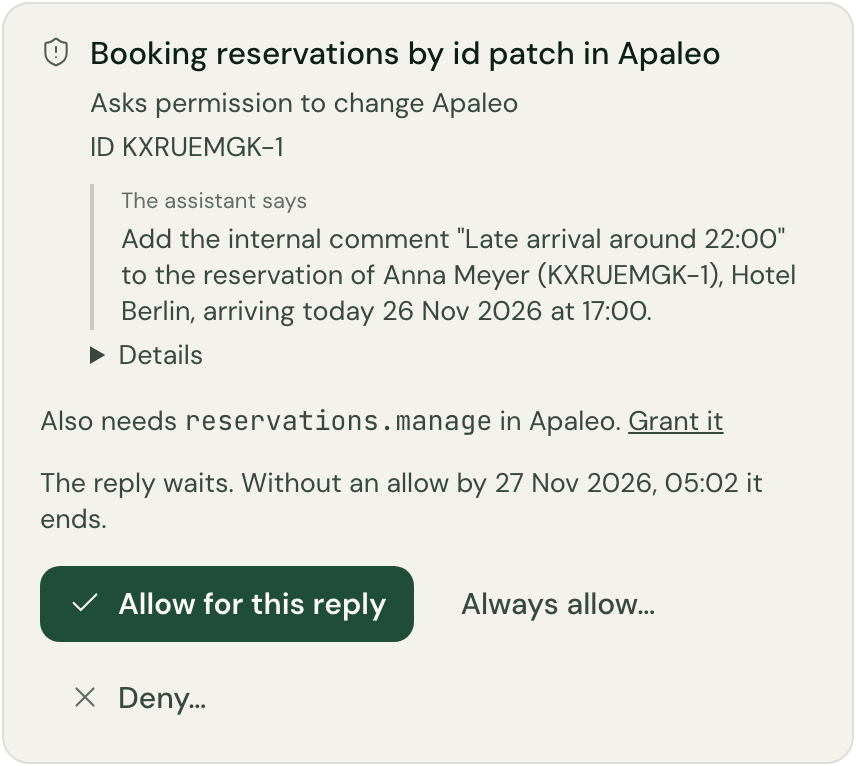
An approval request with its three buttons. -
Select Allow for this reply to let chat make the change. The same change is allowed for the rest of this reply, and the next reply asks again.
-
Or select Always allow… to let chat make this change in every conversation without asking from now on. The request then asks once more what that allows. Select Yes, always allow to save it, or Back to return. Only admins see this button, and not on a request that is asked every time.
-
Or select Deny… and write a reason if you like. Then select Confirm deny.
-
The request shows the decision, such as Allowed for this reply. An allowed reply continues. A denied reply ends there and says who denied what.
Good to know
- If nobody decides by the time on the request, the reply ends.
- A request can say Also needs a permission of the connection, with Grant it. An admin grants it on the connection, and the reply continues once both are done.
- The request also waits under Activity, where it can be decided too.
- Stopping the reply withdraws the request. Nothing is denied then.
- An admin changes what chat may do without asking under Connectors. Open the connection, then Manage permissions on the Chat row under Who uses this connection.
If something goes wrong
- "Waiting on an admin: this request would change what the agent may do." The request asks permission. Ask an admin of the workspace to decide it.
The rules behind this task are in the reference, under Changes and approvals.