

Add a file to a conversation
Who can do this: everyone in the workspace. You need an open conversation, since the Chat start page takes no files.
A file you add goes into Files, the folders your workspace keeps in Discontinue. The conversation shows the file and its folder.
Steps
-
Open the conversation.
-
Select the paperclip in the message box and pick one or more files. You can also drop files on the conversation, or paste a picture into the message box.
-
In Upload to Files, select the folder the files go into. New folder makes a folder inside the selected one.
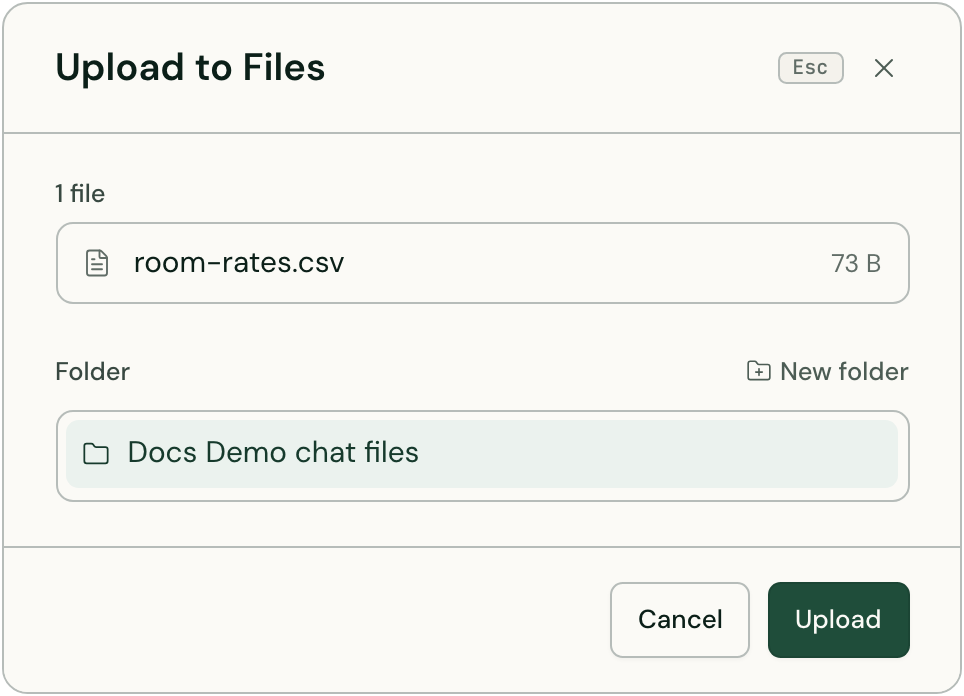
The folder dialog, with a folder selected and Upload ready. -
Select Upload. The upload shows above the message box until it is done.
-
The file appears in the conversation with its name, its size and its folder, marked added to Files. Select the folder to open it in Files.
-
Write what to do with the file. The message box suggests it, such as "Say what to do with room-rates.csv…".
Good to know
- Chat sees the file's name, size and folder. Chat cannot read what is inside a file.
- In a conversation about a site, the site editor uses files from Files. See Use files from Files.
- The next upload in the same conversation suggests the same folder.
If something goes wrong
- A file that failed stays above the message box in red, with the reason. Select Retry, or dismiss it with the ×. A file over 500 MB has no Retry.
- "The file is in Files, but the chat could not be told". The file is in the folder you chose. Select Retry to tell the conversation about it.
The rules behind this task are in the reference, under Files.