

Connect a system
Who can do this: admins, and everyone in the workspace for some integrations, such as Apaleo or Google. You need an account in the system.
The connection acts as that account for every conversation, report and agent in the workspace.
Steps
-
Open Connectors and select Add connector.
-
Find the system. Type its name or a task into the search, or pick a category such as Hotel operations & guests.
-
On the integration's card, select Connect. Some integrations, such as Apaleo, open a page of their own. There you sign in or enter the details the form asks for.
-
The others open a dialog. Keep the Connection name or change it. It tells two connections of the same system apart.
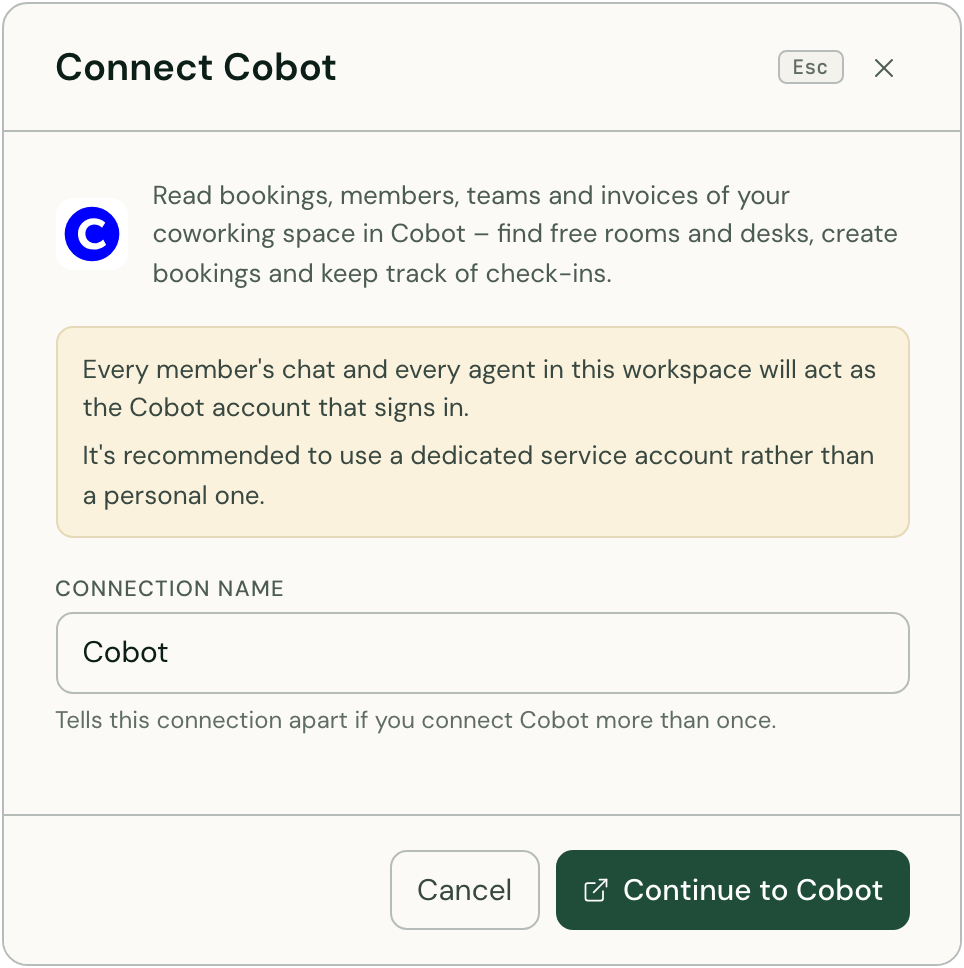
The dialog of an integration that you sign in to. -
For an integration you sign in to, select its Continue to button, such as Continue to Cobot, and sign in there. For one with a key, paste the key and select Connect.
-
The connection's page opens, with Connected next to its name.
Good to know
- Sign in with an account made for Discontinue, not with a person's own. The dialog recommends a dedicated service account.
- To connect a second account of the same system, select Add another on its card. Integrations with a page of their own have one connection per workspace.
- A card that says Coming soon cannot be connected yet.
- When the search finds nothing, admins can select Connect its MCP server yourself. See Connect your own MCP server or API.
If something goes wrong
- The card says "Workspace admins add this connection." Ask an admin of the workspace.
- The connection is there, but its page says its tools could not be listed. Open it and follow Fix a connection.
The rules behind this task are in the reference, under Connecting and One account per connection.