

Fix a connection
Who can do this: admins. On an integration with a page of its own, such as Apaleo, everyone in the workspace can reconnect.
A connection breaks when the system refuses its sign-in or key, for example after the key was revoked.
Steps
-
Look for a red number next to Connectors in the sidebar. In the list, the connection reads Reconnect needed or Needs attention.
-
Open the connection. A notice at the top of its card says what the system refused.
-
Select Reconnect to sign in again, or Replace key to paste a new key. A connection with a username and password has Replace credentials.
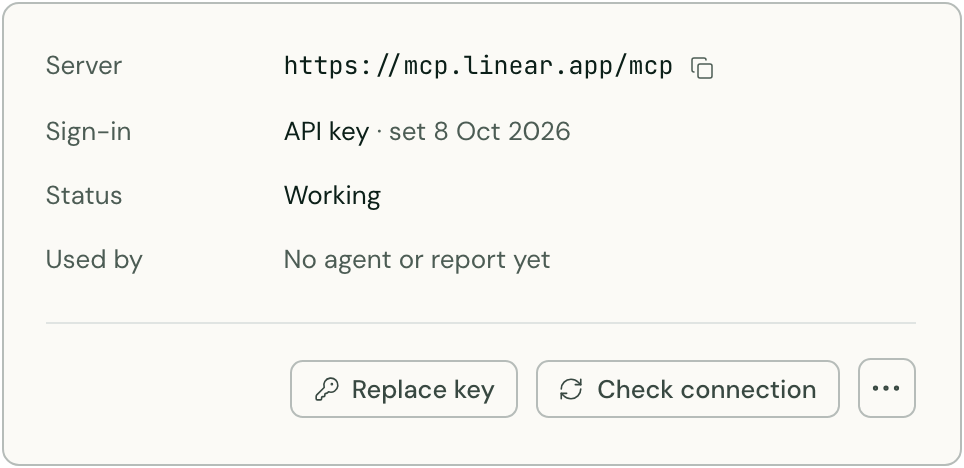
A connection's card, with Replace key and Check connection. -
Check the connection. Select Check connection on a connection from the catalog, Refresh on a custom integration, or Test connection on an integration with a page of its own.
-
The connection reads Connected again.
Good to know
- While a connection reads Reconnect needed, chat, reports and agents fail on every call the system refuses.
- Admins get one email about a broken connection, with a link to it. They get the next one after someone has acted on the connection.
- Tools changed next to a connection means the system no longer lists some of its tools. A call to a removed tool fails. Open the connection to see which tools went.
If something goes wrong
- The check says the system "did not answer" and gives its reason. Fix what the reason names in the system, then check again.
- The system refuses the new key too, and the card shows its reason. Check the key and the header it is sent in, then replace it again.
The rules behind this task are in the reference, under Connection states.