

Decide what runs without asking
Who can do this: admins. You need a connection in the workspace.
Read tools run without asking in chat and reports. In chat, a write tool asks a person first. Reports run a write tool only when you enable it, because nobody is there to ask. What an agent may do is set on the agent.
Set how a tool runs
This works on a connection to an MCP server or an API, from the catalog or a custom integration.
-
Open the connection under Connectors and open Advanced. On a custom integration it is open already.
-
Find the tool under Tools. Runs without asking and Asks first above the list show only those tools.
-
Under How it runs, choose Runs without asking for a tool that only reads, and Asks first for a tool that changes data. The change saves at once.
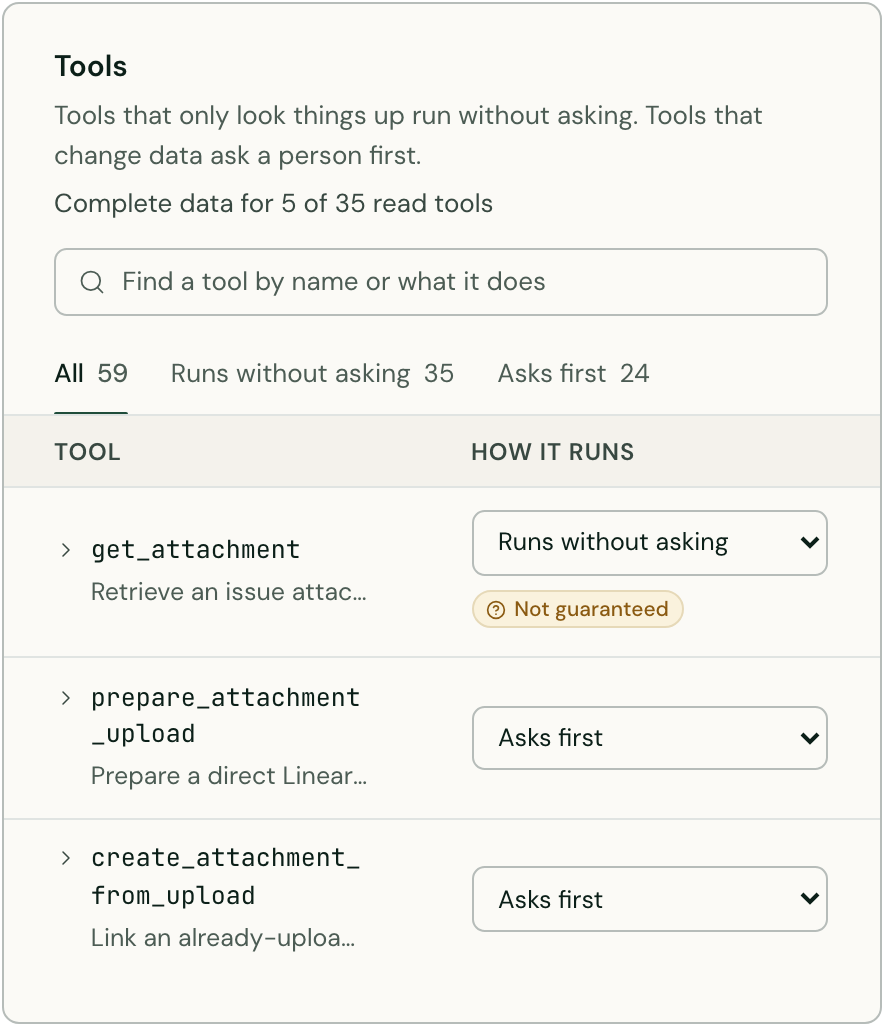
The Tools card, with How it runs for each tool.
Let chat or reports run a write tool
- On the connection's page, find Chat or Reports under Who uses this connection.
- Select Manage permissions. The dialog lists the write tools of the connection.
- Tick a tool and confirm with Enable. Chat or reports then run it without asking. Untick it to make it ask again.
Good to know
- A write tool you leave off is not blocked in chat. Chat asks for approval in the conversation each time it needs it. See Decide an approval request in chat.
- Always allow… on an approval in chat ticks the tool for every conversation. Only admins can choose it.
- Integrations with a page of their own, such as Apaleo, have no How it runs. Discontinue decides which of their tools only read.
- For agents, see Decide what an agent may use.
If something goes wrong
- Runs without asking cannot be chosen. The tool's details say "Can't run without asking: Discontinue reviewed it as a tool that changes data." To let chat or reports run it, tick it under Manage permissions.
The rules behind this task are in the reference, under Tools and how they run and Who uses a connection.