

Remove a connection
Who can do this: admins. On an integration with a page of its own, such as Apaleo, everyone in the workspace can disconnect it.
Removing a connection deletes its stored sign-in or key. Chat, reports and agents can no longer use the system through it.
Steps
-
Open the connection under Connectors.
-
On a connection from the catalog or a custom integration, open the menu button ⋯ on its card and select Remove connection. On an integration with a page of its own, select Disconnect at the bottom of its card.
-
Read the confirmation. It says what goes with the connection, such as the agents that stop working or the Slack channels that are deleted.
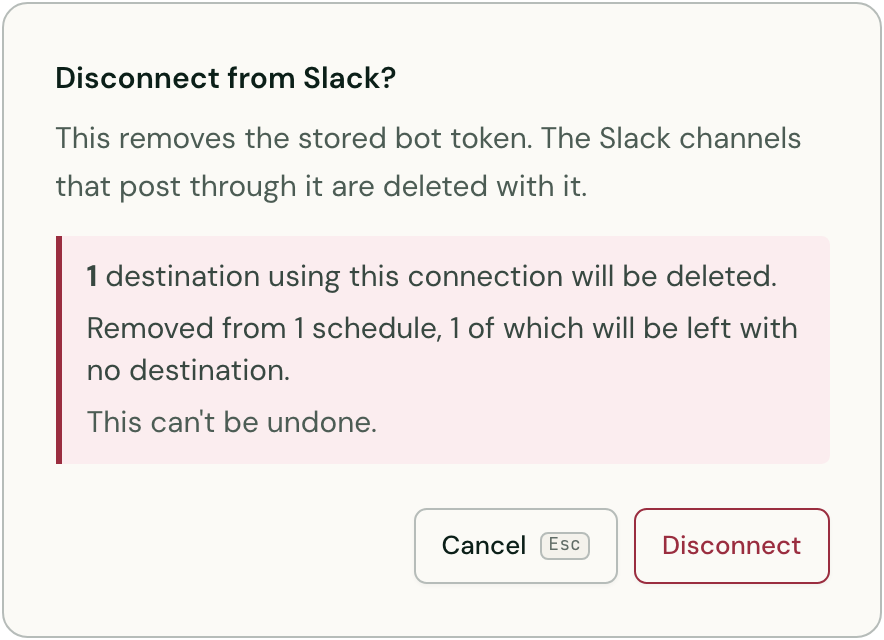
The confirmation before Slack is disconnected, with what goes with it. -
Select Remove or Disconnect.
Good to know
- Disconnecting Slack deletes every Slack channel and takes them off their schedules. This can't be undone.
- Removing a connection from the catalog or a custom integration also deletes the usage manual its agents read, with your notes for the agent.
- To use the system again, connect it again. See Connect a system.
If something goes wrong
- The app says the connection "is the account of" one or more channels. Delete those channels or move them to another connection under Channels first.
- The app says an agent "starts on" the connection's events. Remove the connection from the agent's trigger first.
- An FTP or SFTP server that a channel uses cannot be removed. Delete that channel first.
The rules behind this task are in the reference, under Removing a connection.