

Run an agent
Who can do this: everyone in the workspace. You need an activated agent.
A run you start yourself works like any other run. It can also take instructions and files for that one run.
Steps
-
Open the agent under Agents and select Run agent. The Run agent dialog opens.
-
To shape this one run, write under Instructions what it should do differently. Under Files, add up to 10 files the agent should work with. Leave both empty for a plain run.
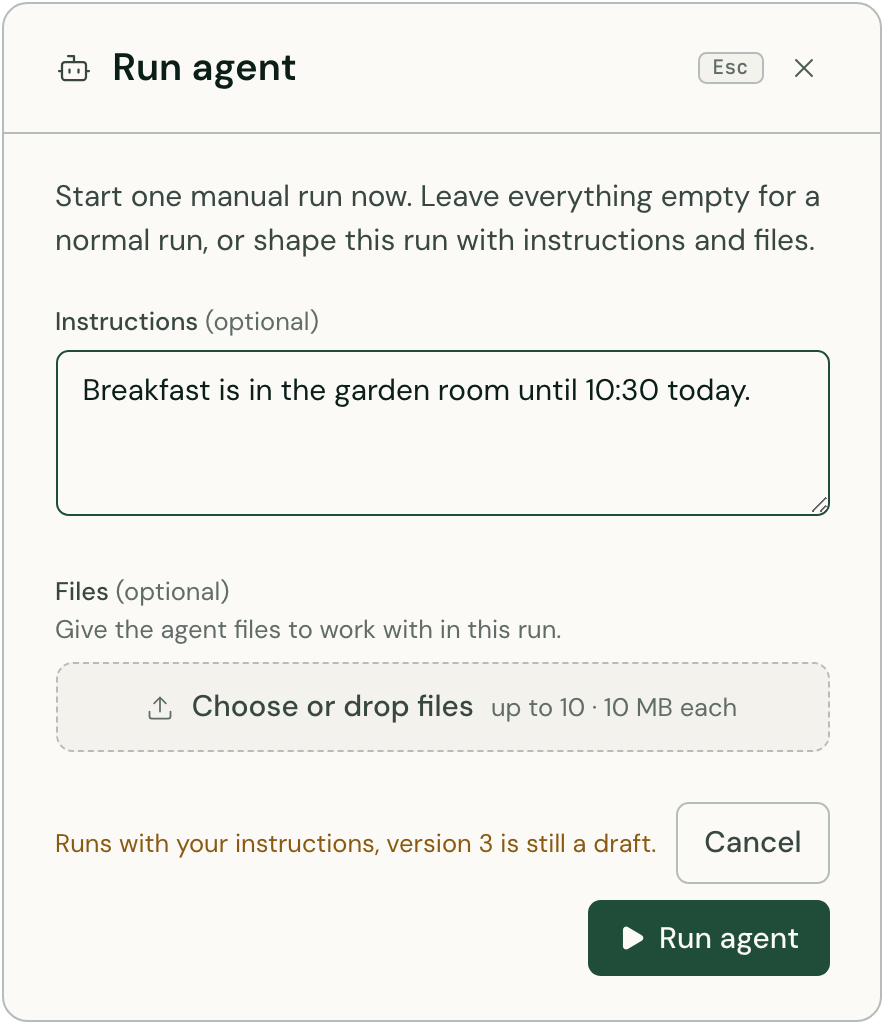
The Run agent dialog, with instructions for this one run. -
Select Run agent. The Runs tab opens, with the new run at the top.
-
Select the run to open it. Its page shows what started it, the steps the agent took and every message it sent. A line such as "2 steps" folds the steps in between. Select it to see them.
-
When the run ends, its page shows the outcome: Completed, Warning or Failed, with a short summary. A run that states no outcome shows Success with No outcome.
Good to know
- You can also drop files on the agent's page. A dialog lets you check them before the run starts.
- Abort run at the top of a running run stops it. What it already did is not undone.
- A run that shows Needs approval waits for a person. See Decide an approval request.
- The Runs tab starts with Run health: how many runs of the last 30 days completed the task, and the most common issue.
If something goes wrong
- A failed run names the problem. Fix with AI opens the agent's conversation about that run, so the Agent Creator can change the agent.
- When the problem was not in the agent, such as a busy system, the run offers Run again instead.
- "This agent has no Python workspace, so a run can't open uploaded files." Add the Workspace tool under Tools on the Agent tab, or run without files.
The rules behind this task are in the reference, under Runs and Outcome.