

Choose who gets alerts about a report
Who can do this: everyone in the workspace. You need a report with a schedule, as Schedule a report shows.
The people and channels on a report's Notify list hear when a scheduled run fails or a delivery does not arrive. The report itself goes to the destinations of its schedules, not to this list.
Steps
-
Open the report and select the Schedules tab.
-
Under Alerts, below the schedules, select Edit. The Alerts dialog opens.
-
Select Add person or chat and pick a person in the workspace or a channel. The search box finds them by name.
-
On each row, choose what it hears: Failed runs, Failed deliveries or both. Select an event to turn it on or off. The line under the events says in words what the entry gets.
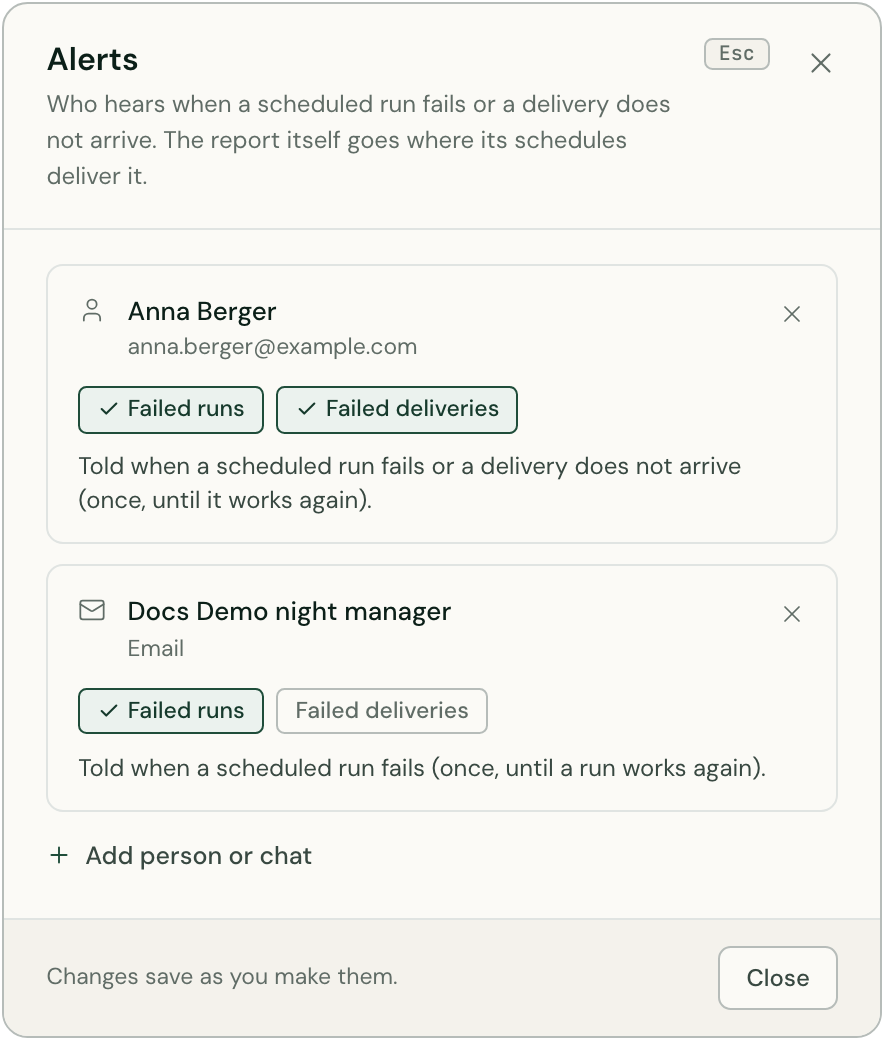
The Alerts dialog of a report, with a person and a channel. -
Select Close. Changes save as you make them.
Good to know
- A new report starts with its creator on the list, hearing both events. A new entry hears both events too.
- Only runs that a schedule starts send alerts. Run report and a schedule's Test alert nobody.
- The Schedules tab shows Alerts once the report has a schedule. The list stays as it is while the report has none.
- An entry with no event left says "Gets nothing, so it is taken off the list." It stays in the dialog until you close it, so you can turn an event back on. The × on a row takes the entry off at once.
- A channel must be set up under Channels before you can add it. FTP or SFTP channels are not offered, because they take files only.
If something goes wrong
- The Schedules tab shows no Alerts. The report has no schedule yet. Add one as Schedule a report shows.
- Under Alerts, the card says "Nobody gets alerts." A failure then reaches nobody. Add someone who hears Failed runs.
- You were added while the report kept failing, and no alert came. The list hears about the next failure only after the report has worked once in between.
The rules behind this task are in the reference, under The Notify list, Events and No repeats.