

Schedule a report
Who can do this: everyone in the workspace. You need a saved report, and for anything but your own email a channel under Channels.
Steps
-
Open the report, then its Schedules tab, and select Add schedule.
-
Type a Schedule name.
-
Under Schedule, choose Every day, Weekdays, Weekends, Custom days or Monthly. Under Months, keep Every month or choose one month.
-
Choose the time. At set times takes an hour and the minutes past it, and Add time adds more times. Every… runs every 15 minutes, 30 minutes or hour between two times.
-
Read the line under the time. It says the schedule in words and names the next run in your workspace's time zone.
-
Under Deliver to, tick where the report goes. Email me is ticked already and sends it to the address you sign in with.
-
For each ticked destination, choose the file under Report as: PDF, Excel or CSV. A webhook shows Message with link and gets no file.
-
Select Create schedule. The schedule appears on the Schedules tab.
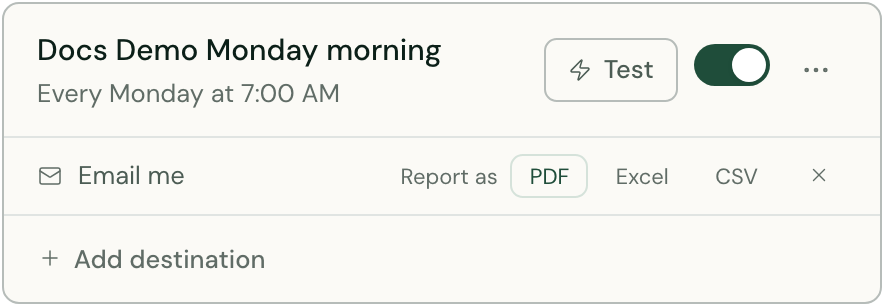
A schedule with its destination, Test and the switch that pauses it. -
Select Test. The schedule runs now and delivers to every destination.
Good to know
- The switch pauses the schedule and turns it back on. A paused schedule shows Paused and does not run.
- Add destination on the schedule adds another destination, and the × removes one. Report as on a row changes its file.
- Edit schedule and Delete are in the schedule's menu.
- Alerts, below the schedules, lists who hears when a scheduled run fails or a delivery does not arrive. It shows once the report has a schedule. See Choose who gets alerts about a report.
If something goes wrong
- A delivery did not arrive. Open the run on the Runs tab. Deliveries shows each destination with Sent or the error.
- A channel is missing from Deliver to. Set it up under Channels first.
The rules behind this task are in the reference, under Schedules and Deliveries.