

Fix a failed run
Who can do this: everyone in the workspace. You need a report with a failed run.
A failed run says in plain words what went wrong and what to do next.
Steps
-
Open the report. A red dot on the Runs tab means that the newest run failed or hit the monthly limit.
-
Open the failed run on the Runs tab. The notice names the problem and what to do.
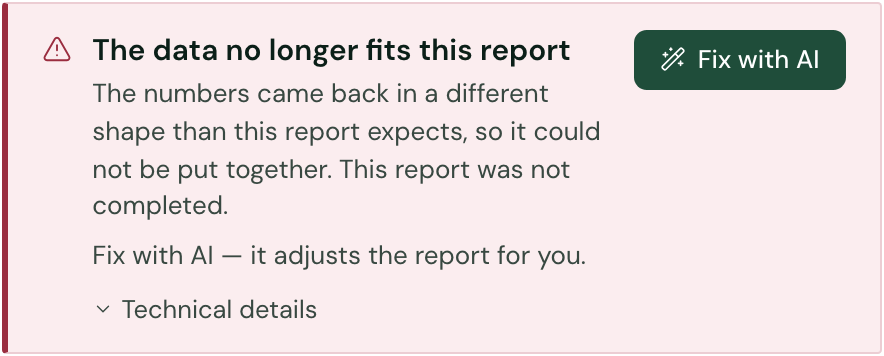
The notice on a failed run, with Fix with AI. -
Use the notice's button. Run again starts a new run, and a link such as Connectors or Billing opens what needs your attention. Fix with AI opens a conversation about the run, and the next two steps follow it.
-
In the conversation, select Fix it. The report builder reads the run's error, repairs the report and shows it as a new version.
-
Check the panel and select Save Report. The fixed version becomes active, and the report runs once.
Good to know
- Technical details on the notice shows the error as the system reported it.
- When a run you started with Run report fails, the report page shows the same notice under Output.
- A failed scheduled run is reported to the people and channels under Alerts on the Schedules tab. Runs you start yourself are not. See Events.
If something goes wrong
- The notice says "Monthly run limit reached". The plan's report runs for this month are used up. See Limits and cost controls.
- The fixed version fails again. Write in the same conversation what the report should show, and the report builder tries again.
The rules behind this task are in the reference, under Runs and Data sources.