

Change a report
Who can do this: everyone in the workspace. You need a saved report.
Change it with AI
- Open the report and select Edit with AI. A new conversation opens with the report beside it and asks "What would you like to change on this report?"
- Describe the change, such as "Add a column with the room nights per day". The report builder makes a new version and shows it in the panel.
- Check the panel and select Save Report. The new version becomes active, and the report runs once.
Rename it
- Point at the report's name and select the pencil next to it.
- Change Report name or Description and select Save changes. A new name makes no new version.
Go back to an earlier version
-
Select the version badge at the end of the report's tabs, such as Version 4. It opens the list of versions.
-
Select the menu of the version you want back.
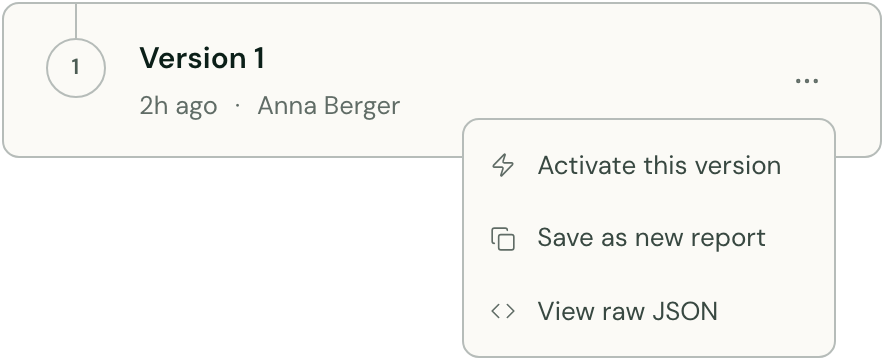
The menu of a version that is not active. -
Select Activate this version, then Make active. That version runs from now on, and the report runs once. No version is deleted.
Good to know
- Save as new report in a version's menu copies that version into a new report. Its name ends in "COPY", and schedules are not copied.
- Duplicate report, in the menu at the top of the report page, copies the active version the same way.
- View raw JSON opens a version's definition in a new tab.
- Delete report in the same menu deletes the report with all its schedules. It cannot be undone.
The rules behind this task are in the reference, under Versions and Building a report.