

Change the alerts you get
Who can do this: everyone in the workspace, for their own alerts. You need to be on the Notify list of an agent or a report.
There is no single switch for all alerts. You change them on each agent and each report that you hear from.
Change alerts from an agent
- In the alert email, select Change what you hear at the bottom. The agent's page opens with the Alerts dialog. Without the email, open it as Choose who hears from an agent shows.
- On your row, select an event to turn it off, or the × to leave the list. Changes save as you make them.
Change alerts about a report
- Open the report's Alerts dialog as Choose who gets alerts about a report shows. An alert email about a report has no Change what you hear link.
- On your row, turn off Failed runs or Failed deliveries, or select the × to leave the list. Changes save as you make them.
Get alerts in German
-
Select your name or your initials at the bottom of the sidebar. The Account page opens on Profile. On a phone, select your name there, then Account.
-
Under Language, select Deutsch.
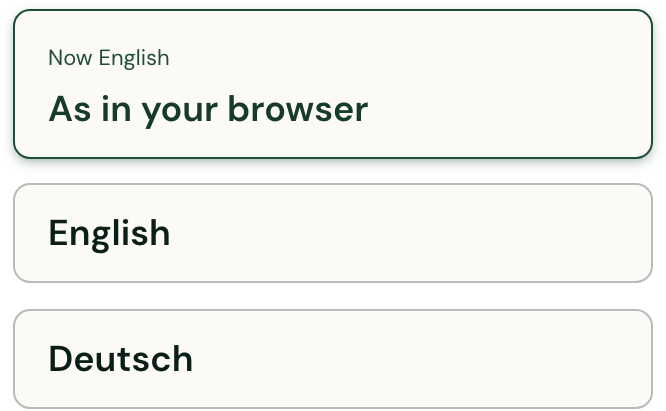
The choices under Language. Alert emails follow the one you pick. -
Your next alert emails come in German. The app and chat answers switch too.
Good to know
- With As in your browser, alert emails come in English, whatever your browser's language.
- Channels always get alerts in English.
- Everyone in the workspace can add you to a list or take you off it. Only you can turn on Messages, an agent's own emails, for yourself.
- When you are removed from a workspace, you leave every Notify list in it.
The rules behind this task are in the reference, under Emails and channel messages and The Notify list.