

Create a site in chat
Who can do this: everyone in the workspace. You need nothing else to start.
You describe the site in chat, and the site editor builds a first draft in the same conversation.
Steps
-
Open Publish in the sidebar and select New site. A conversation opens and asks what the site should be called and what it is for.
-
Answer in one message, for example "A website for Alpenrose, a family guest house in Tyrol with eight rooms". You can name a template, such as Small business site.
-
Chat names the template it starts from and says why. It creates the site from that template, and the template becomes release 1.
-
The site editor builds a first draft from what you wrote. The preview beside the conversation shows it, and the site editor says in one sentence what changed.
-
Write your next request in the same conversation. Each turn of the site editor updates the draft at once, so there is nothing to save.
-
To point at something instead of describing it, select Comment on the page at the bottom of the preview or in the message box. Click an element to put a numbered box around it, or drag a box. Type a short note on the mark if you like, then write your request and send it. Select Done to stop drawing.
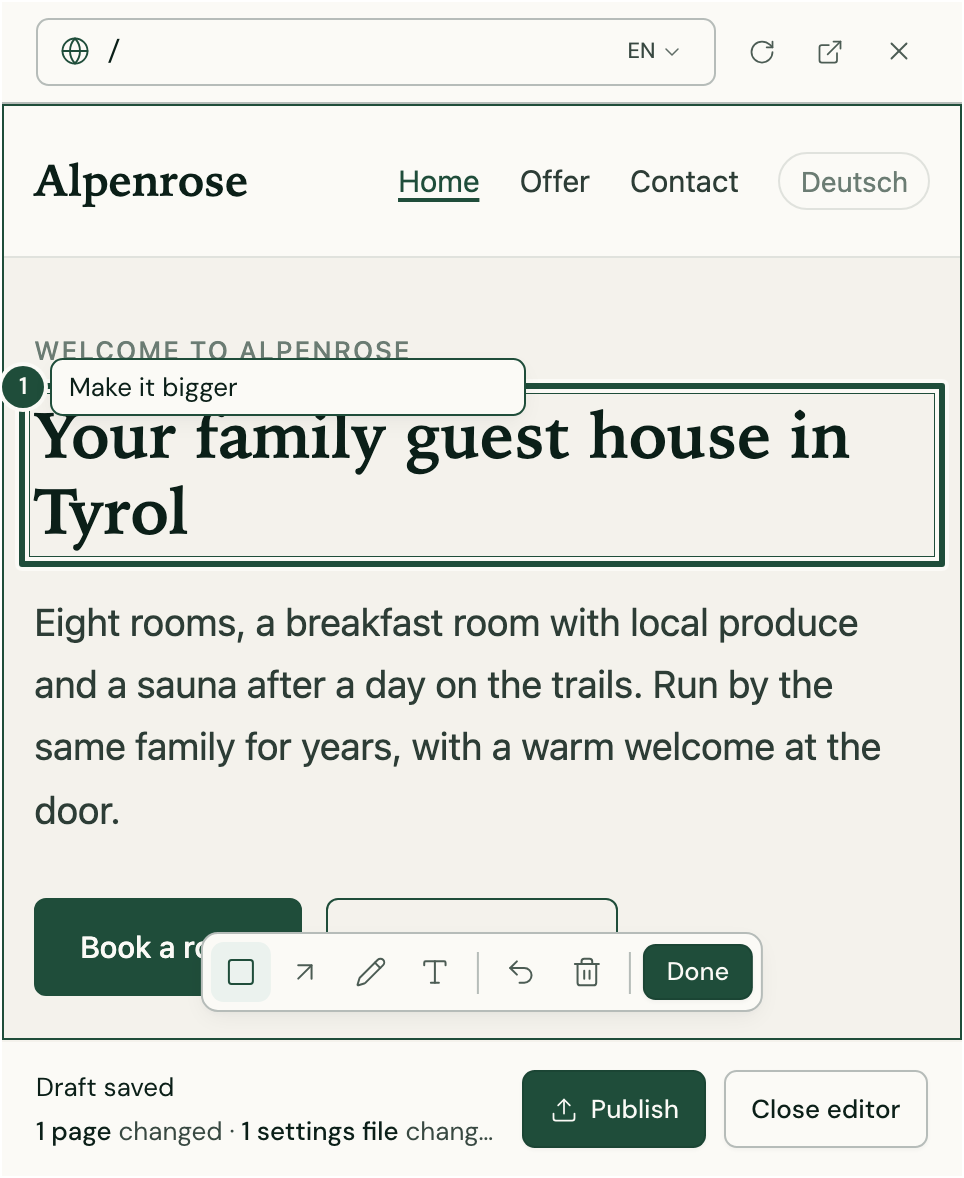
A numbered box marks the heading and carries a short note for the site editor. -
When the draft looks right, an admin publishes it. See Publish and restore.
Good to know
- If you give only a name, the site editor suggests two or three things the site could be and asks which one you want.
- The site editor works on the page the preview shows. Follow a link in the preview to move to another page.
- The site has no address until its first publish. Until then, people in your workspace open the draft's preview link.
- To change the site later, select Edit with AI on the site. Each time, it opens a new conversation with the site beside it.
The rules behind this task are in the reference, under Templates and Chat and the site editor.