

Use files from Files
Who can do this: everyone in the workspace. You need the files in Files or on your computer.
Files holds the folders your workspace keeps in Discontinue. The site editor copies what a site needs from there.
Use photos or a logo
- Upload the files into a folder in Files.
- In a conversation about the site, tell the site editor where they are, for example "Use the photos in Marketing/Summer 2026 on the home page".
- The site editor attaches the folder to this conversation and copies what the site needs into the site. If it attaches a folder during a reply, it says so. Answer with what to do next, such as "go ahead".
Move an existing website in
-
Get a zip of your website as your current host publishes it. You need the published files, not the source project.
-
Select New site under Publish and write "Move my website to Discontinue".
-
When chat asks for the zip, drop it on the conversation or select the paperclip. In Upload to Files, pick a folder or create one with New folder, then select Upload.
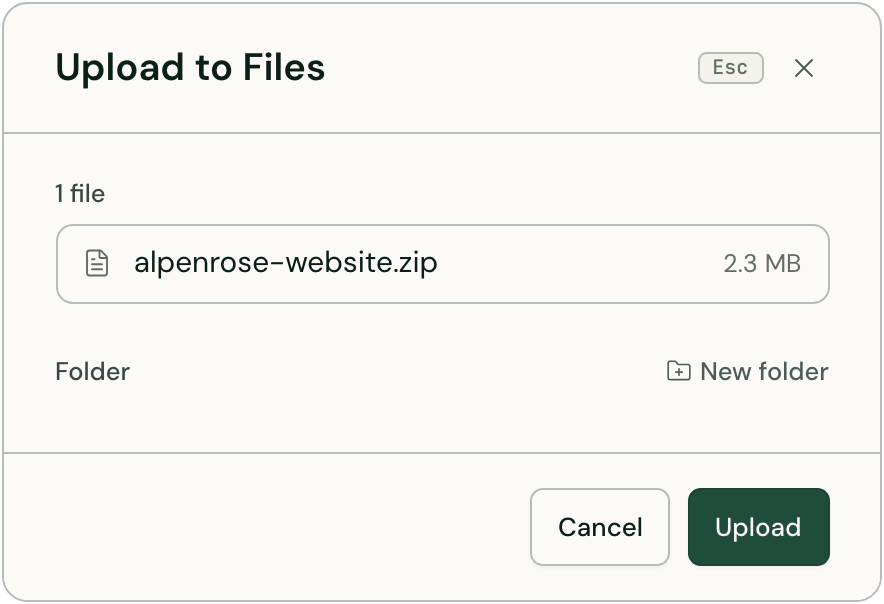
The file to upload, and the place to pick its folder before Upload. -
Chat creates the site, and the site editor copies the website into it unchanged. It tells you what it copied and what is missing, such as a picture that is not in the zip.
-
Check the preview. Then an admin publishes the draft.
Good to know
- The site editor only reads an attached folder. It never changes anything in Files.
- What the site editor copies becomes part of the site. A later change in Files reaches the site only when you ask for it.
- A new conversation about the site starts without attached folders.
The rules behind this task are in the reference, under Files in a site.