

Put a site in several languages
Who can do this: everyone in the workspace. Publishing needs an admin. You need a site.
A multilingual page is one file with the layout. Its texts are in a words file for each language. Each page then exists in every language, and the languages cannot drift apart.
Steps
-
Ask the site editor in a conversation about the site, for example "Add German to this site. English stays at the root, German goes under /de/."
-
The site editor adds German to the site's
_languagesfile. It writes a German words file for every page and shared block, such aslocales/de/index.json. A site with another structure keeps its own, as the reference says under Languages. -
Check both languages in the preview. On a multilingual page, the bar shows the language, such as EN. Select it to see the page in another language.
-
An admin publishes the draft. See Publish and restore.
-
Open the site's Advanced tab, which only admins see. Languages shows each language with its address and its number of pages.
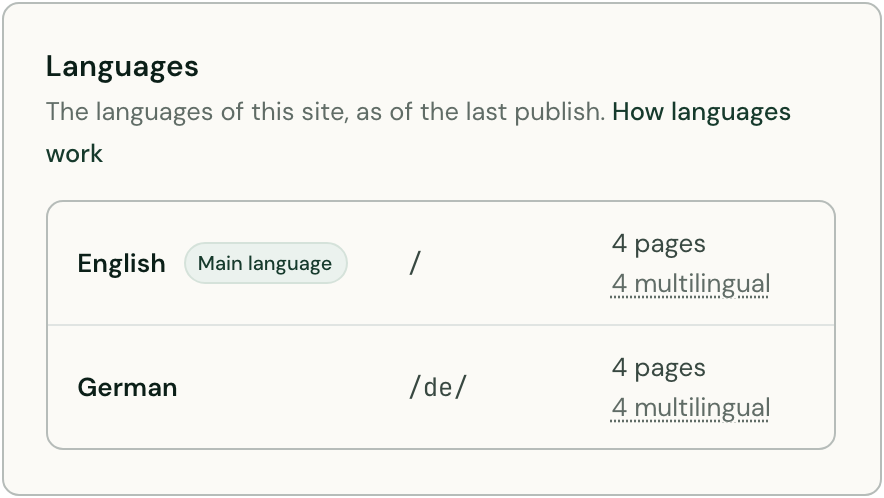
Each language of the site with its address and its number of pages. -
If a language says "1 page not translated", select it to see which page lacks a words file. Ask the site editor to add it.
Good to know
- A text without a word in a words file shows in the main language.
- A page of its own at a language path, such as
en/legal/index.html, always wins over the filled page. Discontinue calls it a standalone page and never reports it as untranslated. - The Pages tab lists multilingual pages under Pages (multilingual) and the others under Pages (standalone).
The rules behind this task are in the reference, under Languages.