

Publish and restore
Who can do this: everyone in the workspace continues a draft. Publishing and restoring need an admin, or an agent that an admin allows to publish. You need a site with a draft.
Publishing puts a draft live as the site's next release. Every earlier release stays, and you can bring any of them back.
Publish a draft
-
Select Publish on the draft. You find it under the preview in the conversation and on the draft in the site's Versions tab. You can also ask the site editor in the conversation to publish.
-
Read the top of the Publish this draft dialog. It names the release the draft becomes, the address where it goes live and who can see the site. Change opens who can see the site.
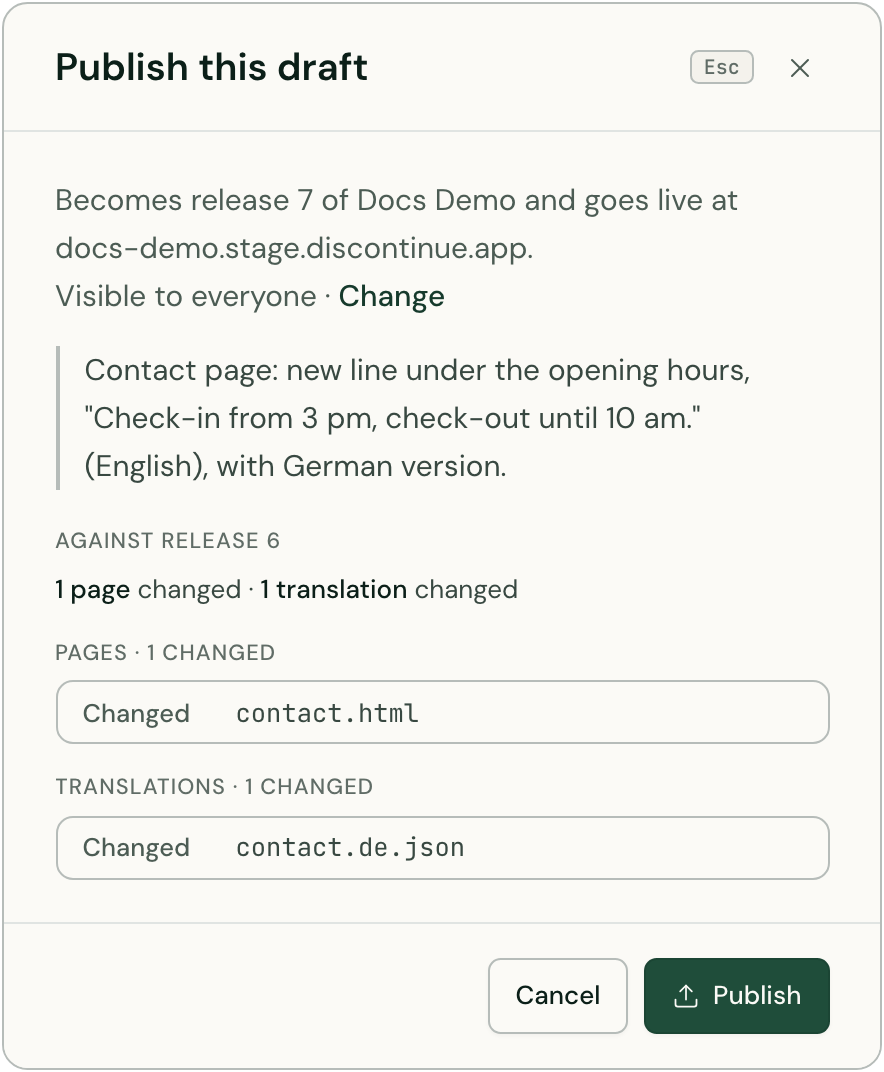
The publish dialog names the release, the address and who can see the site. -
Check what goes live. The dialog shows the draft's notes, a line such as "1 page changed" and every changed file by kind. A line such as "Shows on 9 pages" counts the pages that show a shared block the draft changes.
-
At the first publish only, choose the address in the Address field. It suggests an address made from the site's name. Keep it or type another one.
-
Select Publish. The draft becomes the next release, and the address shows it within about a minute.
Continue a draft
- Open the site's Versions tab. Under Drafts, select the summary line, such as "2 drafts · last continued 2h ago", to open the list.
- Select Continue in chat on the draft. A new conversation opens with Continue this draft.
- Select Continue, or write your next request. The draft stays as it was until your next edit. That edit puts today's live site under your changes.
- If the draft said Needs update, check the pages it named in the preview. The site editor put your change back on the live copy of each file. Then an admin can publish.
Restore a release
- Open the Versions tab. Under Releases, open the menu of the release you want back.
- Select Restore this release. Only admins see it. A dialog shows what changes against the live release.
- Confirm with the button that names the release, such as Restore release 3. The old release goes live again as the next release. The releases in between stay.
Good to know
- To undo a publish, restore the release before it.
- Copy preview link in a draft's menu gives a link to the draft's preview. It opens only for people in your workspace.
- Versions under a page lists only the drafts and releases that touch that page, each marked Added, Changed or Removed. Changes to the page's texts are listed under Versions of its words file, in Translations.
If something goes wrong
A held publish keeps Publish off, and the dialog says why.
- A file of the draft changed on the live site since the draft started. The draft shows Needs update. Continue the draft: your next edit brings it up to date.
- A page would lose a shared block it uses. Continue the draft so that the page keeps the block.
- The site is included in another site, and a file breaks one of its rules. The dialog names the file. The rules are in Included sites.
How drafts and releases relate is in Drafts and releases. The rules behind these tasks are in the reference, under Addresses and Releases and drafts.