

Change an agent and its versions
Who can do this: everyone in the workspace. You need an activated agent.
Every change to an agent is a numbered version. The active version is what the agent runs, and the earlier ones stay.
Change it in place
- On the agent's Agent tab, select Edit next to the part to change, such as the instructions under What does this agent do?.
- Save. The change becomes a new version and is active at once. Its row on the Versions tab says Manual edit.
Change it in chat
-
Select Edit with AI at the top of the agent's page. The agent's own conversation opens.
-
Say what to change. The Agent Creator proposes a new version, and nothing changes until you activate it.
-
Open the Versions tab. Its label names the active version. The new version is under Ready for review.
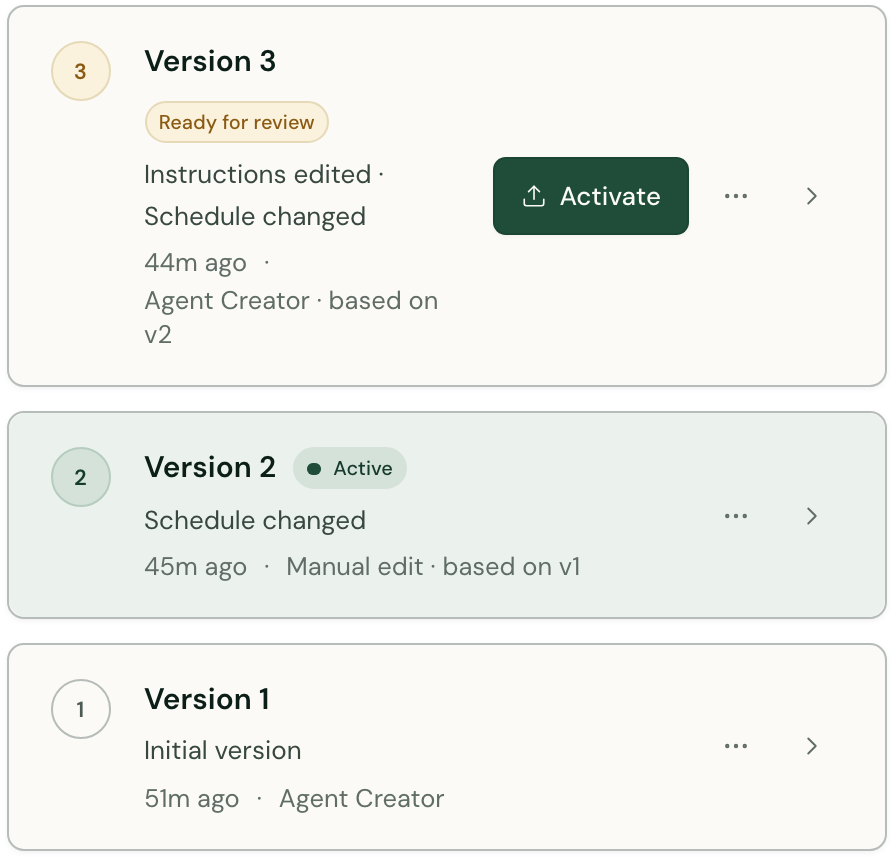
The Versions tab, with a version ready for review above the active one. -
Select the arrow at the end of a row, Review this version, to see that version with its changes highlighted.
-
Select Activate, then Activate version in the dialog. Tick Keep paused triggers paused first if its schedule or events should stay paused.
Go back to an earlier version
Open the ⋯ menu of an earlier version, select Roll back this version and confirm. The agent runs that version again, and the newer versions stay.
Good to know
- An admin can copy an agent. Duplicate as new agent in a version's ⋯ menu copies it into a new agent. Duplicate agent in the ⋯ menu at the top copies the active version. A copy starts as a draft, with its schedule or events paused and no runs.
- Delete agent in the ⋯ menu at the top deletes the agent with all its runs. This cannot be undone.
- Access, keyrings, logins, the environment and the Notify list are not part of a version. Activating or rolling back keeps them.
The rules behind this task are in the reference, under Versions.