

Choose when an agent runs
Who can do this: everyone in the workspace. You need an activated agent.
An agent has one trigger. It runs on a schedule, by email or on events, and you can always start it yourself too.
Run it on a schedule
-
On the agent's Agent tab, under When does this agent activate?, select Set schedule. On an agent with a schedule, it says Edit schedule.
-
Choose the days: Every day, Weekdays, Weekends, Custom days or Monthly. Under Months, keep Every month or choose one month. Then choose the Hour and the minutes.
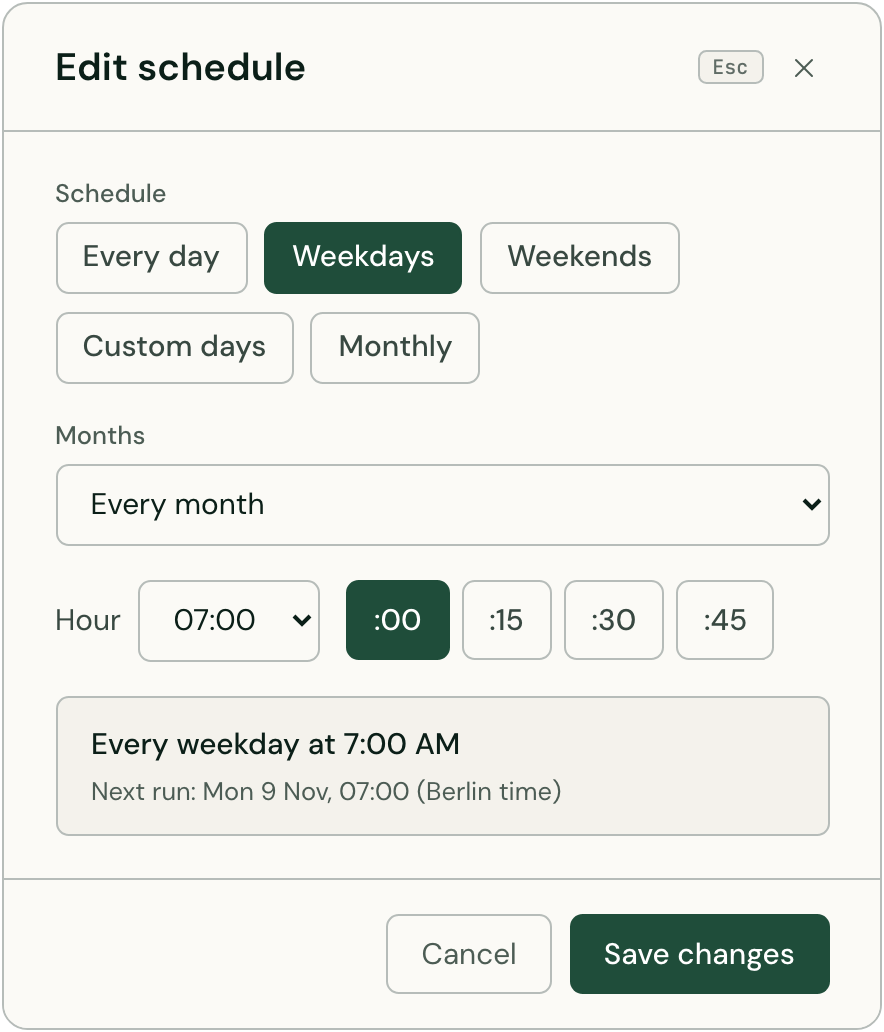
The schedule dialog names the schedule and its next run before you save. -
Select Create schedule, or Save changes on an existing one. Times are in the workspace's time zone.
-
On an agent that had no trigger, the new schedule starts paused. Select Resume schedule to start it.
Run it when someone emails it
- Select Use email. The Enable email dialog opens. Everyone in your workspace may send.
- To allow others, type an address or a whole domain such as
@hotel.comand select Add. - Select Enable email. The agent gets an address of its own, shown under When does this agent activate?.
- On an agent that had no trigger, email starts off and the card says Email off. Open the card's Edit menu and select Enable email.
Each email from an allowed sender starts one run. The run answers the sender, with everyone they copied.
Run it on events
Ask for it in Edit with AI, for example "Run whenever a new reservation arrives in Apaleo". The Agent Creator sets the events, and the card lists each source. Add source adds another connected system, or a URL with a signing key for a system that posts its own events.
Good to know
- A schedule, an email address and events replace each other. The app says so before it replaces one. The new trigger stays on if the old one was on.
- Pause schedule and Turn off events stop automatic runs. Disable email is in the email card's Edit menu. Run agent keeps working.
- For several times a day, or a run every few hours, ask in Edit with AI.
The rules behind this task are in the reference, under Triggers.