

Ask a question about your data
Who can do this: everyone in the workspace. Chat answers from the systems connected under Connectors.
Steps
-
Open Chat in the sidebar.
-
Type your question in the message box, for example "How many arrivals does each property have in the next 7 days?". Press Enter to send it. Shift and Enter start a new line.
-
Watch the working steps while chat looks up the answer, such as Finding the right data and Working with live data. Select a step to see what chat asked for and what came back.
-
Read the reply. Chat answers in text, and with tables, charts or rows of figures where they help.
-
Ask a follow-up in the same conversation, for example "Show the same numbers as a bar chart." Chat knows what was said before in the conversation.
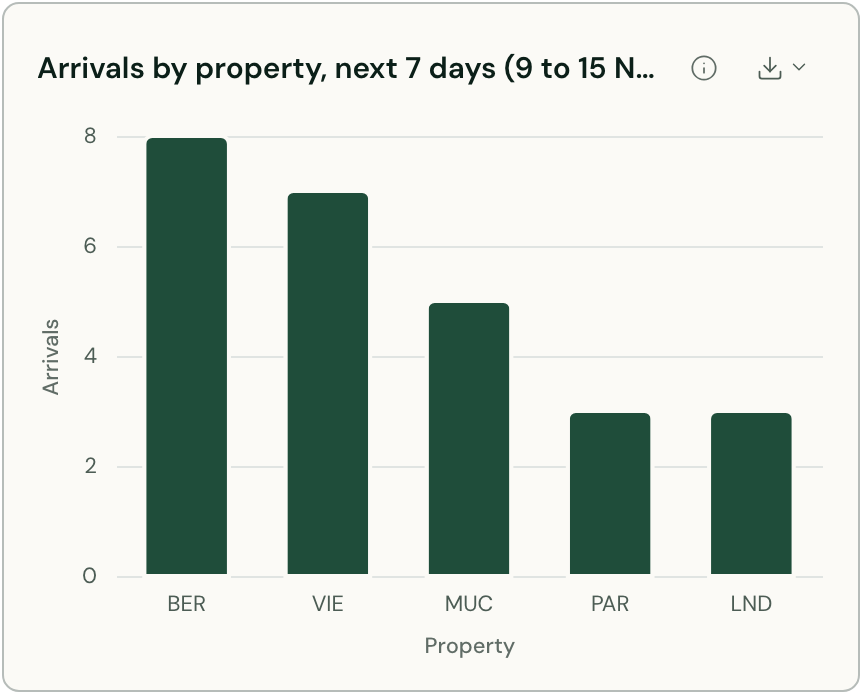
A chart in a reply, with its two buttons at the top right. -
On a chart or a table, select Where this came from, the i button. It shows Where it came from and What was calculated.
-
To keep the data, select the download button next to it and pick Excel or CSV.
Good to know
- To stop a reply, select the square button in the message box.
- A message you send while a reply runs waits until the reply finishes. Don't send takes it back.
- When the workspace can choose between AI tiers, the gauge in the message box of the start page picks the tier of a new conversation. See Plans and AI credit.
- Chat also answers questions about the app itself, such as "Which reports failed this week?".
- To get an answer again on a schedule, ask chat to save it as a report. See Create a report in chat.
If something goes wrong
- "Not sent: Discontinue could not be reached. Your message is still here." Select Send again.
- "Something went wrong on Discontinue's side while writing this reply." Select Try again.
- "Connection to Discontinue lost. Reconnecting…" The reply keeps running, and the conversation reconnects by itself.
The rules behind this task are in the reference, under Replies and Answers.