

Drop files on an FTP or SFTP server
Who can do this: everyone in the workspace. You need the server connected under Connectors, with the folder already on it.
An FTP / SFTP channel puts files into one folder of a server, for systems that pick up files from there. It gets files only. A message, such as a test, arrives as a small text file.
Steps
-
Under Connectors, open FTP / SFTP. If your server is not listed, select Add a server and enter its details.
-
Open Channels, select FTP / SFTP, then Add FTP / SFTP destination.
-
Type a Name and pick the Server.
-
Under Remote path, type the folder the files go to, such as
/imports/discontinue. Discontinue does not create the folder. -
Under Filename template (optional), set how the files are named, such as
{{report_slug}}_{{date}}.xlsx. The form lists the variables you can use.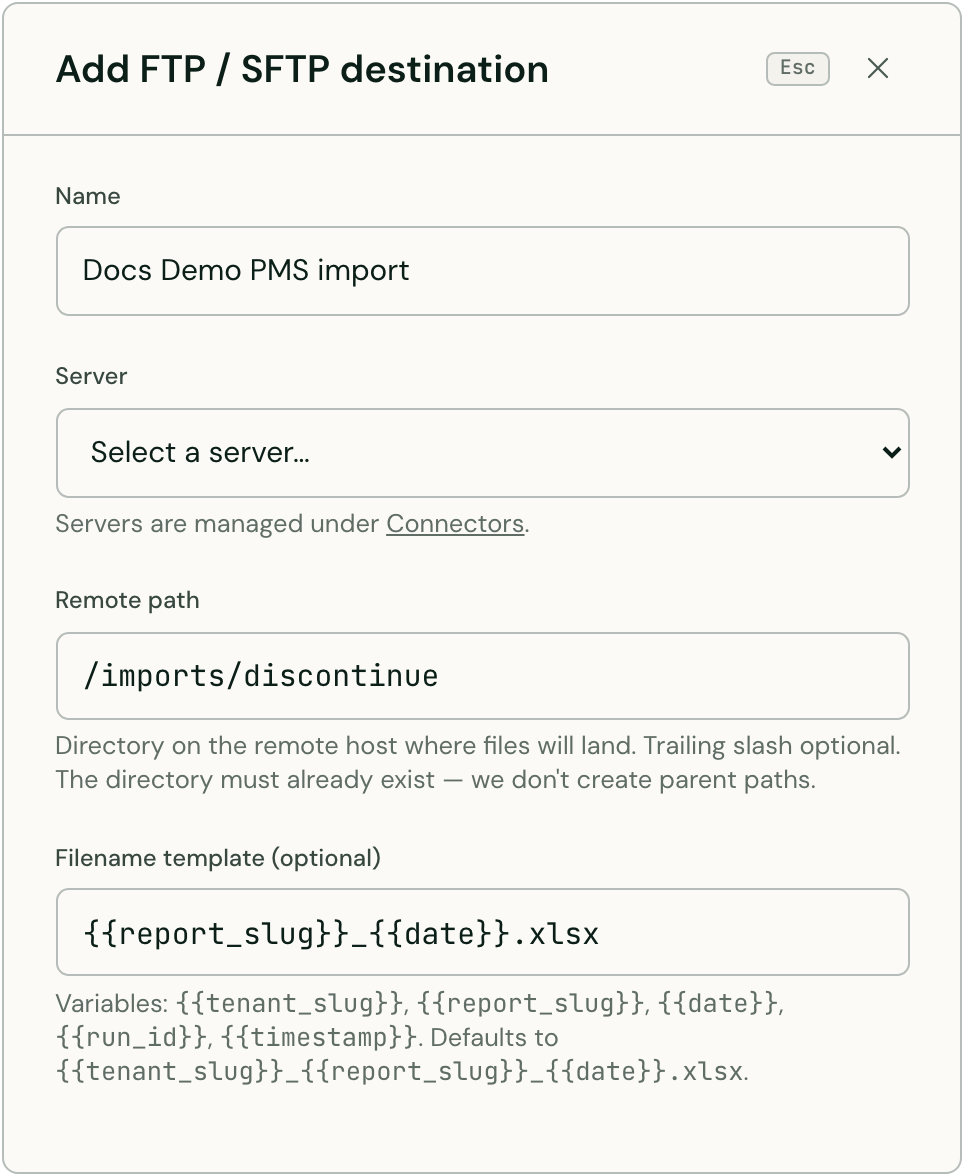
The FTP / SFTP form, with a folder and a filename template. -
Select Save destination.
-
Select Test on the new row. A small text file whose name starts with
connection-test-lands in the folder.
Good to know
- A report schedule sends the file as Excel unless you choose PDF or CSV on the schedule.
- A file with the same name in the folder is replaced.
- The server of a channel cannot be changed later. Set up a new channel for another server.
- An FTP / SFTP channel cannot be on a Notify list.
If something goes wrong
- A delivery says "The server connection is broken". Reconnect the server under Connectors.
- A delivery fails with the server's own error. Check that the folder exists and that the server's user may write to it.
The rules behind this task are in the reference, under FTP / SFTP.