

Post to Microsoft Teams or a webhook
Who can do this: everyone in the workspace. You need the webhook URL of the receiving side.
A webhook channel posts each message to one URL. Its format decides what arrives: a card in a Teams channel, or the message as JSON.
Microsoft Teams
-
In Teams, add the workflow "Post to a channel when a webhook request is received" to the channel, and copy the URL it gives you.
-
In Discontinue, open Channels, select Webhook, then Add Webhook destination.
-
Type a Name. Keep Microsoft Teams under Format, and paste the URL under Webhook URL.
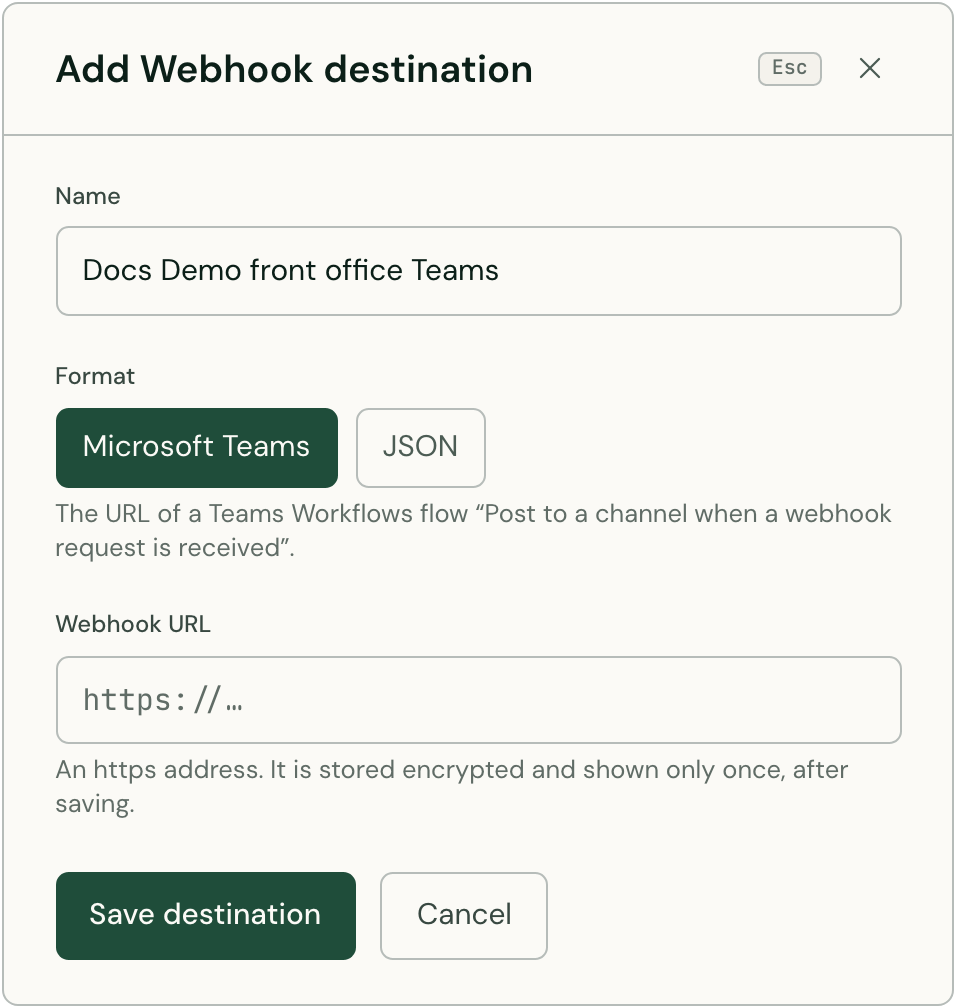
The webhook form, with the Microsoft Teams format chosen. -
Select Save destination. The form shows the Webhook URL and a Signing secret once. Copy what you need, then select Done.
-
Select Test on the new row. A card arrives in the Teams channel.
JSON for Make, n8n, Zapier or your own system
- In the receiving tool, start a scenario or workflow with a webhook trigger, and copy its URL.
- Add a webhook channel as above, but choose JSON under Format.
- Select Save destination, then Done, then Test.
- The test arrives with
"kind": "notification". Map the fields on the receiving side. They are listed under The JSON message.
Good to know
- A webhook gets no file. A report arrives as its message with a link to the run.
- After saving, the channel shows only the URL's host. To send elsewhere, select Edit on its row and paste a new URL under Replace URL.
- A JSON webhook channel can also forward events, such as a failed run. See Forwarding events.
If something goes wrong
- The form says "The webhook URL must start with https://." or that it "must point to a public address". Use the receiver's public https URL.
- The Channels page says the channel "is not receiving deliveries". The receiver refused the URL. Paste a new one with Edit.
The rules behind this task are in the reference, under Webhook.