

Post to Slack
Who can do this: everyone in the workspace. You need your Slack workspace connected under Connectors.
A Slack channel posts to one channel in Slack, as the Discontinue app of your Slack workspace.
Steps
-
Open Channels and select Slack. The card names the connected Slack workspace. If it says "Slack is not connected", connect Slack under Connectors first.
-
Select Add Slack destination.
-
Type a Name, such as "Housekeeping".
-
Under Channel, pick the channel in Slack. The list holds the public channels and the private channels the app is a member of.
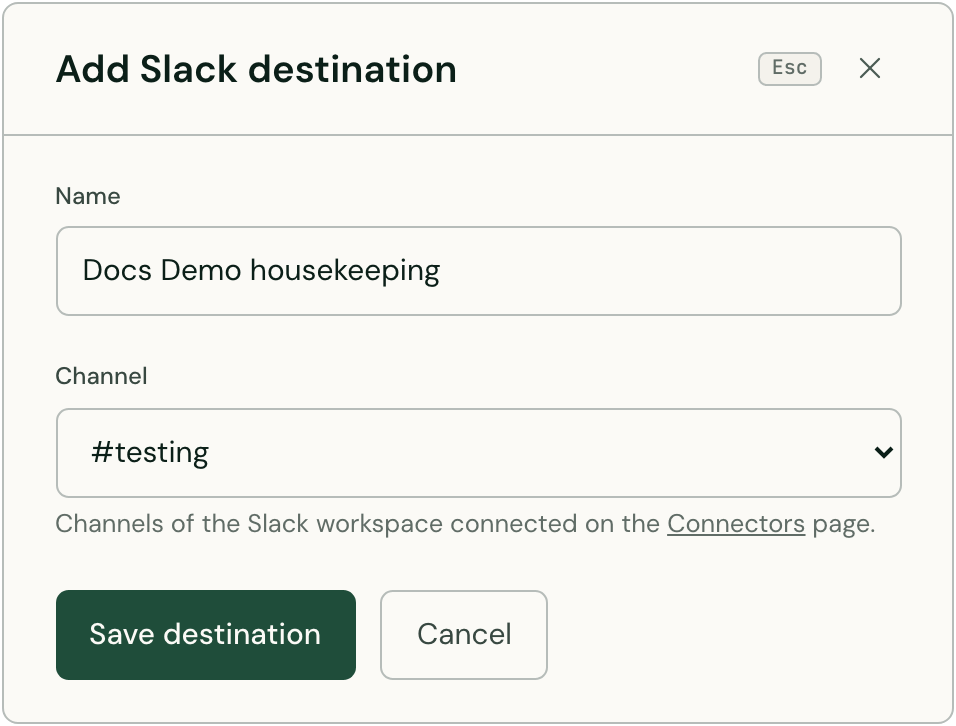
The Slack form, with a channel in Slack picked. -
Select Save destination.
-
In Slack, add the app to that channel, for example with
/invitein the channel. Messages arrive without it, report files do not. -
Select Test on the new row. A test message arrives in the channel in Slack.
Good to know
- A report arrives as a Slack message, then the report file.
- One Slack workspace is connected per workspace. Every Slack channel posts through it.
- Disconnecting Slack under Connectors deletes every Slack channel. See Remove a connection.
If something goes wrong
- The delivery history says "The Discontinue app is not a member of this Slack channel". Add the app to the channel in Slack, then send again.
- It says "Slack needs the file-upload permission (files:write)". Reconnect Slack under Connectors.
- The Slack tile says Needs attention. Slack refused the connection. Fix it under Connectors.
The rules behind this task are in the reference, under Slack.