

Test, mute or change a channel
Who can do this: everyone in the workspace. A channel that forwards events is muted, pointed elsewhere and deleted by admins only.
Send a test message
- Open Channels and select the tile of the channel's type.
- Select Test on the channel's row. The app says "Test message sent successfully.", or shows the error the receiving side gave.
Mute, edit or delete a channel
-
On the channel's row, select the ⋯ button (More actions).
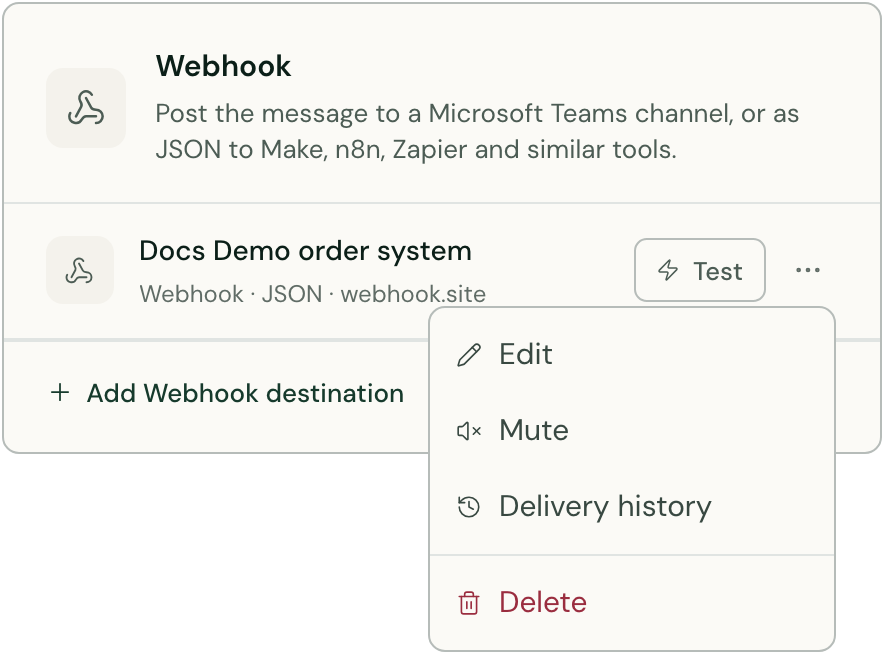
A channel's row with its menu open. -
Select Mute to stop all sending. The row then shows Muted, and Unmute in the same menu turns it back on.
-
Select Edit to change the name or where the channel sends. Select Save changes.
-
Select Delete to remove the channel. The app asks first, then deletes it.
Good to know
- Test also works on a muted channel, so you can check it before you unmute it.
- Tests do not show in the delivery history.
- A report sent to a muted channel is recorded as skipped. The run does not fail.
- Deleting a channel takes it off every schedule and every Notify list, and its delivery history goes with it. The schedules, reports and agents stay.
- A channel's type cannot be changed. Neither can the server of an FTP / SFTP channel. Set up a new channel instead.
If something goes wrong
- A test fails. The error comes from the receiving side, such as "Webhook returned 404". Fix the address with Edit, then test again.
- A member cannot mute or delete a channel and sees "Only an admin can". The channel forwards events. Ask an admin.
The rules behind this task are in the reference, under Testing, muting and deleting.