

Check what a channel sent
Who can do this: everyone in the workspace. You need a channel that reports or agents have sent to.
Each channel has its own page with its delivery history: every message and file that reports and agents sent through it, newest first.
Steps
-
Open Channels and select the tile of the channel's type.
-
Select the channel's name. Delivery history in the row's menu opens the same page.
-
Read the line under the name. It gives the channel's type, Active or Muted, and how many deliveries the list holds.
-
Narrow the list with Reports or Agents, and with Sent or Failed.
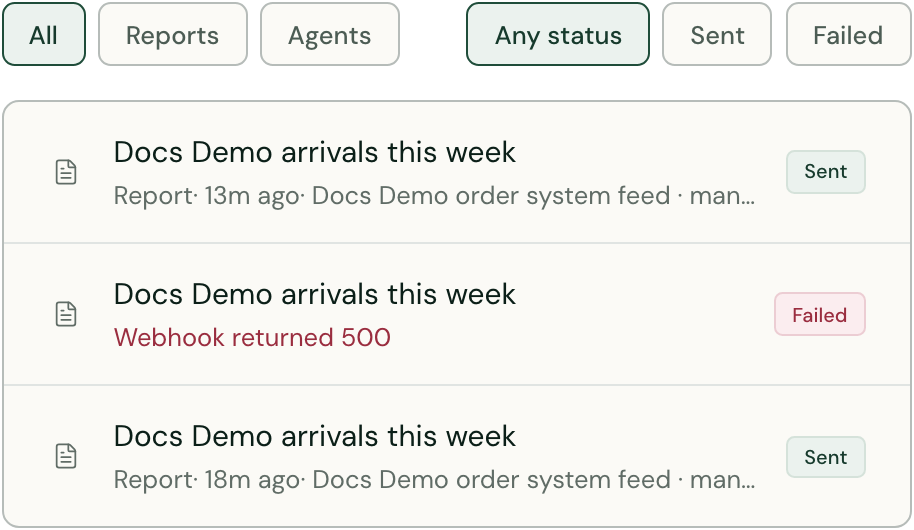
A channel's delivery history, with one failed delivery. -
Select a row's name to open the report run or agent run that sent it.
Good to know
- A failed row shows the error instead of the details, such as "Webhook returned 500".
- A row says Skipped when the channel was muted at the time.
- Tests, Notify list messages and forwarded events do not show in the history.
- The page of a JSON webhook channel also shows Events. See Forwarding events.
If something goes wrong
- A card at the top of Channels says a channel "is not receiving deliveries". The receiver refused the channel's webhook URL. Update channel on the card opens the channel's page, which has no Edit. Open the Webhook tile instead, select Edit on the channel's row and paste a new URL. The card goes away with the next delivery that works.
- A delivery says Sent, but nothing arrived. The receiving side accepted it, so look there first, such as in the spam folder for an email.
The rules behind this task are in the reference, under Delivery history.