

Run, download and share a report
Who can do this: everyone in the workspace. You need a saved report.
Run it now
- Open the report on the Reports page.
- Select Run report. The report reads its data live, and Output shows the result.
- The run is listed on the Runs tab. Select it to open the run's page.
Download a file
-
Select the arrow next to Run report.
-
Choose Export as PDF, Export as HTML, Export as Excel or Export as CSV. The report reads its data live and the file downloads.
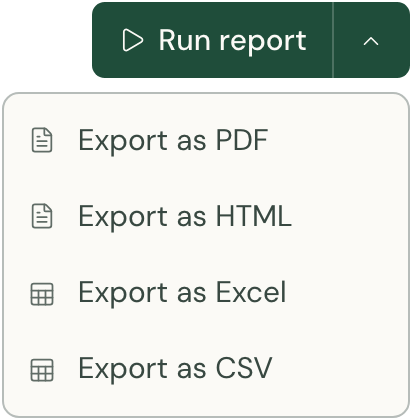
The download formats under the arrow next to Run report. -
To download an earlier run, open it on the Runs tab and select Export. The file holds that run's data.
Share a link
- Open a successful run on the Runs tab and select Share.
- Select Create share link. The link is listed under Active Links with the day it expires.
- Copy the link with the button next to it. Anyone with the link sees this run for 7 days without signing in.
- To stop a link earlier, select the bin next to it. Its tooltip says Revoke. The link then shows "Share link expired".
Good to know
- A run you start with Run report delivers nothing. Only a schedule delivers.
- Every run counts toward your plan's monthly report runs. A download from the arrow menu does not.
- The download button at the top of a conversation's report panel downloads the version the panel shows.
The rules behind this task are in the reference, under Runs, Files and Share links.