

Send to email addresses
Who can do this: everyone in the workspace. You need the addresses.
An email channel sends to a fixed list of addresses. A report schedule or an agent that sends to it reaches everyone on the list.
Steps
-
Open Channels and select Email.
-
On the Delivery destinations tab, select Add Email destination.
-
Type a Name, such as "Front office team". Reports and agents show the channel by this name.
-
Under Recipients, type an address and press Enter. Add the next one the same way, up to 10.
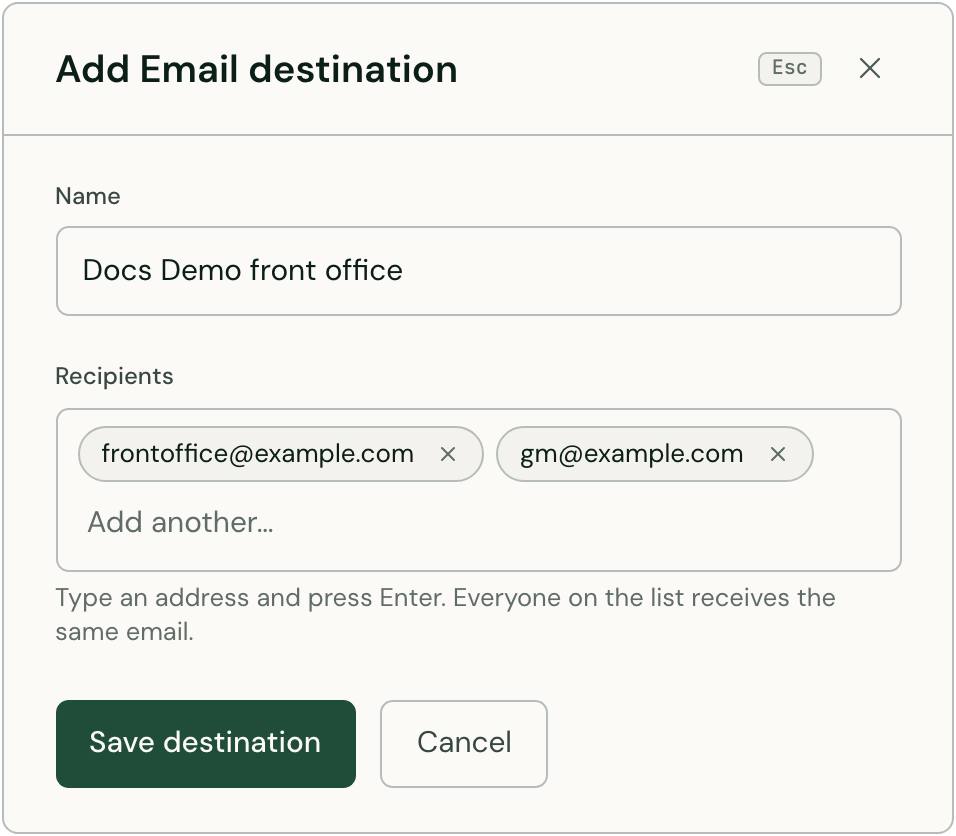
The email form, with two recipients added. -
Select Save destination. The channel appears in the list.
-
Select Test on its row. Each recipient gets a test email whose subject starts with "Discontinue, test message".
Good to know
- The emails come from Discontinue's own sender. The Delivery destinations card names its address.
- All recipients are in the email's To line, so each one sees the others.
- To send a report only to yourself, tick Email me on its schedule. That needs no channel. See Schedule a report.
- An agent can send to the channel in your branded email or in a design of its own. See The Discontinue connection.
- The Addresses tab is about your agents' own email addresses, not about channels.
If something goes wrong
- The form says "An email channel can have at most 10 recipients." Set up a second channel for the other addresses.
- An email did not arrive. Check the spam folder, then the channel's delivery history. See Check what a channel sent.
- An agent's email fails with "Email sending limit reached". The workspace's agents emailed 100 recipients in the last hour or 500 in the last day. Wait, or send less often.
The rules behind this task are in the reference, under Email.